



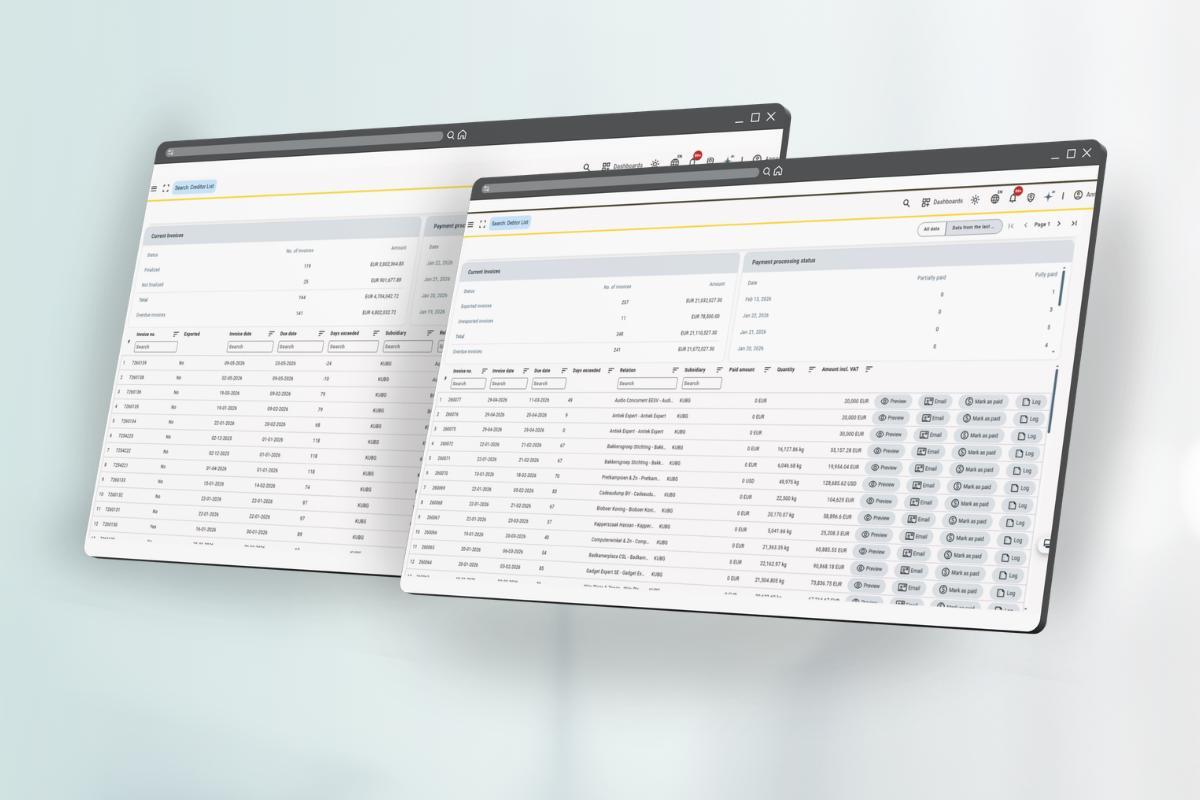
Debtor and Creditor Screens
Qbil-Trade now includes two new screens for managing open invoices: the Debtor screen and the Creditor screen. Both are available for customers using Exact Online.
Introduction
Keeping track of outstanding invoices often means switching between systems. The Debtor and Creditor screens bring that information directly into Qbil-Trade, so you can monitor and act on open invoices without leaving the platform.
The Debtor screen gives you a central overview of all open sales invoices. The Creditor screen does the same for purchase invoices. Both screens show only invoices with an outstanding balance by default, keeping the view focused on what requires attention.
What you can do
From the Debtor screen:
- Monitor customer payment status and track which invoices are exported, unpaid, or overdue
- View incoming payments (full and partial) retrieved from Exact Online
- Open, preview, resend, or manually record a payment directly from the screen
From the Creditor screen:
- Track what you still owe to suppliers
- Monitor whether purchase invoices are fully assigned to goods or costs, and whether they have been finalised
- View outgoing payments retrieved from Exact Online
- Open, finalise, export, or manually record a payment directly from the screen
How it works
Both screens are available via Finance in the navigation drawer. Select Debtor or Creditor to open the relevant screen.
Each screen is built around four sections:
- Header — filter by date range (all-time or last two years) and navigate between pages.
- Summary panel — a snapshot of invoice totals grouped by status. Click a status to filter the invoice list instantly.
- Status section — shows incoming or outgoing payments retrieved from Exact Online, grouped by date. Click any number to see which invoices were paid on that day.
- Invoice list — the main working area. Search and filter by any column, and take action directly on individual invoices.
The Debtor screen groups invoices by export status: exported (sent to Exact Online but unpaid), non-exported, and expired.
The Creditor screen groups invoices by finalisation status: finalised (fully assigned to goods or costs), not finalised, and expired.
Both screens default to showing only invoices with an outstanding balance. Use the Total filter in the summary panel to include fully paid invoices.
Note: Proforma invoices are not shown in the Debtor screen. If the pre-payment module is active for your organisation, prepaid sales invoices are included.
Availability
The Debtor and Creditor screens are available for all customers with the Exact Online integration active.
Learn more (ensure that you are logged in to the Qbil-Trade environment)